Auto-Tune
Auto-Tune hands the tuning of a Spark job over to definity. Once it's enabled on a job, definity applies configuration changes to real production runs, measures each change against a baseline, reverts any change that causes a regression, and keeps iterating until the job settles at its best safe configuration. It keeps watching the job after that.
Why Auto-Tune
Insights and recommendations show where the waste is, but someone still has to act on each one, and do it again every time the job changes. At scale that doesn't happen: a few high-profile jobs get tuned once, and the long tail never gets tuned.
Auto-Tune moves the whole job of tuning to definity:
| Manual tuning | Auto-Tune | |
|---|---|---|
| Who does it | An engineer, job by job, between feature work | definity, on every job you enable |
| How changes land | One change at a time, checked by hand | Small steps, each checked against baseline duration, SLA and reliability |
| When a change hurts | Someone notices and rolls it back | Reverted automatically, and tuning continues on a safer path |
| When the job changes | Tuning goes stale | Drift reopens tuning automatically |

How It Works
Opportunities that can be auto-tuned
definity detects waste on each job and surfaces it as an insight with an annualized impact (see Waste Profiles & Optimizations). Each insight falls into one of two classes:
| Class | What it covers | Shown as |
|---|---|---|
| Auto-tunable | Waste that can be fixed through configuration and parameter overrides, for example executor count, cores, memory or shuffle partitions. | Fix: Auto-tune |
| Recommendation-only | Waste whose real fix is a code or data change, such as rewriting a query, repartitioning in code or fixing a skewed key. | Fix: Manual |
Auto-Tune only manages auto-tunable insights. Recommendation-only insights stay as recommendations for your team. definity never shows a capture counter on them, and it detects when you've applied the fix in code on later runs.
The tuning loop
Auto-Tune applies changes through the definity Spark agent, which overrides the job's Spark configuration at submit time. You don't change any code or job definitions.
For each auto-tunable insight, definity:
- Records a baseline of the job's cost, run duration and reliability before any change.
- Builds a tuning plan, the sequence of parameter changes it will trial. The engine decides which insights to tune together (for example, when they share a parameter) and in what order, highest dollar impact first.
- Applies one step at a time to production runs, then measures its effect over the following runs.
- Keeps or reverts the step. If the step holds within the guardrails and reduces cost, definity keeps it and moves on to the next one. If it regresses, definity reverts it to the last known-good configuration and tries a safer path.
- Finalizes once the job converges on its best safe configuration. The change is pinned and definity keeps monitoring it.
If definity runs out of safe moves without finding a gain, it finalizes at the best safe configuration, which may be the original one. It doesn't report this as an error.
Guardrails and self-healing
definity checks every run of a tuned job against the baseline:
- Duration budget: run time mustn't increase beyond the allowed budget (for example, no more than 10% above the baseline).
- SLA protection: runs must still meet the job's SLA.
- Reliability: no new failures, OOMs or retries.
- Cost: the change has to reduce cost.
A guardrail breach doesn't put the insight into a failure state and doesn't need anything from you. definity reverts the step that caused it and keeps tuning. Every step that was tried and reverted shows up in the Auto-tune activity, as a normal part of the process.
Drift is handled the same way. If a finalized insight starts regressing later, for example because input volumes change, definity reopens it, reverts the step that drifted and tunes again.
Job changes: if the job's code or parameters change while Auto-Tune is active, the baseline is no longer valid. definity re-measures the job, sets a new baseline and resumes tuning. It doesn't count savings from before the change toward runs after it.
Insight lifecycle
Each auto-tunable insight moves through these statuses. definity drives every transition.
| Status | Meaning |
|---|---|
| Open | The insight isn't being tuned yet: Auto-Tune is off for the job, or the engine hasn't reached this insight. |
| In progress | definity is trialing changes on production runs. Regressions are reverted and tuning continues. |
| Closed | Tuning has converged. The final configuration is applied and monitored, and the insight reopens to In progress if it drifts. |
How savings are measured
Savings are based on what definity actually observes on completed runs, not on projections:
- While tuning is in progress, the savings reported are the ones observed so far under the new configuration. Early on this can be a range, because only a few runs have been observed. The number can dip for a while when a step is reverted.
- Once an insight is closed, its savings become a single realized annual value.
Using Auto-Tune
Step 1: Review the job's opportunities
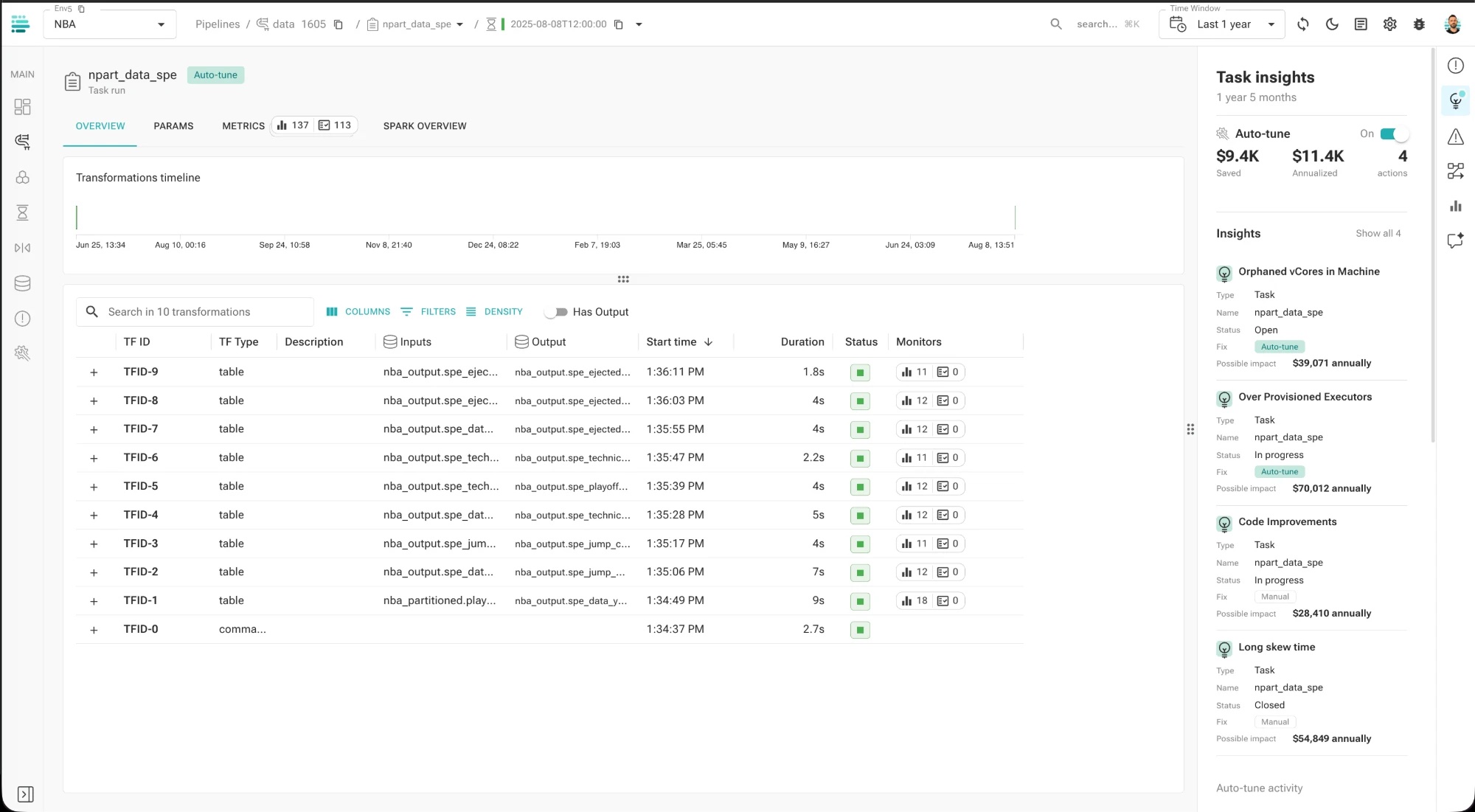
Open a task run and select the Task insights icon (the lightbulb) in the right-hand bar. The panel lists every insight on the task, with its type, status, Fix method and Possible impact in dollars per year.
Insights marked Fix: Auto-tune will be managed by Auto-Tune. Insights marked Fix: Manual need a change from your team.
Step 2: Enable Auto-Tune on the job
Turn on the Auto-tune toggle at the top of the Task insights panel. Auto-Tune is set per job and covers all of the job's auto-tunable insights. You can't enable or exclude individual insights.
Before you confirm, the enable dialog shows:
- The active guardrails, including the duration budget and SLA and failure protection.
- A reminder that definity will apply changes to real production runs on its own, and will revert and keep tuning automatically if anything regresses.
Once you confirm, the job shows an Auto-tune badge next to its name, and the next run picks up the first tuning step.
Tuning takes place over runs, not minutes. Each step has to be observed across several runs before definity keeps it, so how quickly a job converges depends on how often it runs.
Step 3: Track progress
With Auto-Tune on, the top of the Task insights panel summarizes the job:
| Field | Meaning |
|---|---|
| Saved | Savings realized so far on this job's runs under the tuned configuration. |
| Annualized | Those savings projected to a full year. |
| Actions | The number of tuning actions definity has taken on the job. |
Each insight card shows its current status, so you can see what's still in progress and what's closed. Scroll to Auto-tune activity at the bottom of the panel to see what definity changed on each step, including steps it reverted, and the configuration currently applied compared with the original.
In the screenshot above, two insights are In progress and one is Open, all of them auto-tunable. Long skew time is a manual fix that has already been Closed.
Step 4: Review the changes Auto-Tune applied
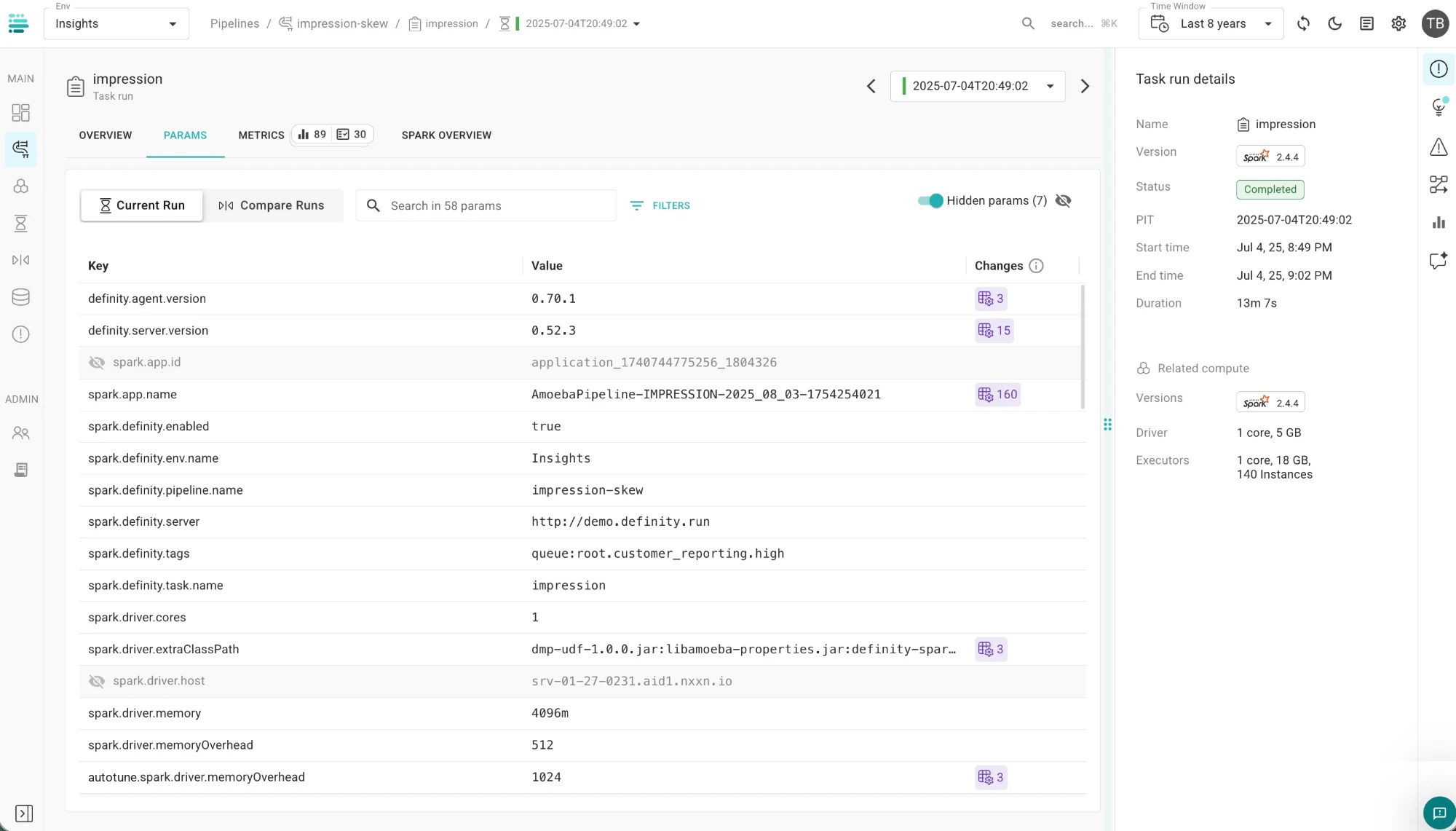
To see exactly which parameters Auto-Tune changed on a given run, open the task run and go to the Params tab. It lists every Spark and definity parameter the run used.
For each parameter Auto-Tune overrode in that run, the list has an extra row whose key starts with the autotune prefix. That row holds the value Auto-Tune applied, and the row for the original parameter still shows the job's own value. Search for autotune in the params search box to list only the parameters Auto-Tune changed.
In the example below, the job sets spark.driver.memoryOverhead to 512. The extra autotune.spark.driver.memoryOverhead row shows that Auto-Tune applied 1024 on this run, and its purple Changes badge shows that the tuned value has changed across runs.
To see how the applied values changed over time, use Compare Runs to compare a tuned run with one from before Auto-Tune was enabled. The Changes column also shows how many times a parameter's value has changed across runs.
Step 5: Handle recommendation-only insights
Insights marked Fix: Manual stay in your team's hands. Open the insight to see the suggested code or data change and its impact. After you apply the fix, definity detects the improvement on later runs and closes the insight. You can dismiss a recommendation you don't plan to act on.
Step 6: Turn Auto-Tune off
You can turn Auto-Tune off at any time with the same toggle. When you do:
- All changes definity applied to the job are reverted, including configurations from insights that already converged.
- Any tuning still in progress stops.
- The next run uses the job's original configuration.
The savings history stays available after you turn Auto-Tune off.
Turning the job off is the only step you ever need to take to undo Auto-Tune. You don't need to find or remove individual overrides.
Coming Next
Auto-Tune currently runs in one mode: autonomous tuning on production runs. A staging validation mode is planned: definity will run a full-fidelity copy of the job in staging, on production data but writing to a separate location, and prove each change there before applying it to production.